
How to Fix Browser Games That Will Not Load or Lag
Use this safe step-by-step checklist when a browser game will not load, freezes, shows a blank screen or responds slowly on desktop or mobile.
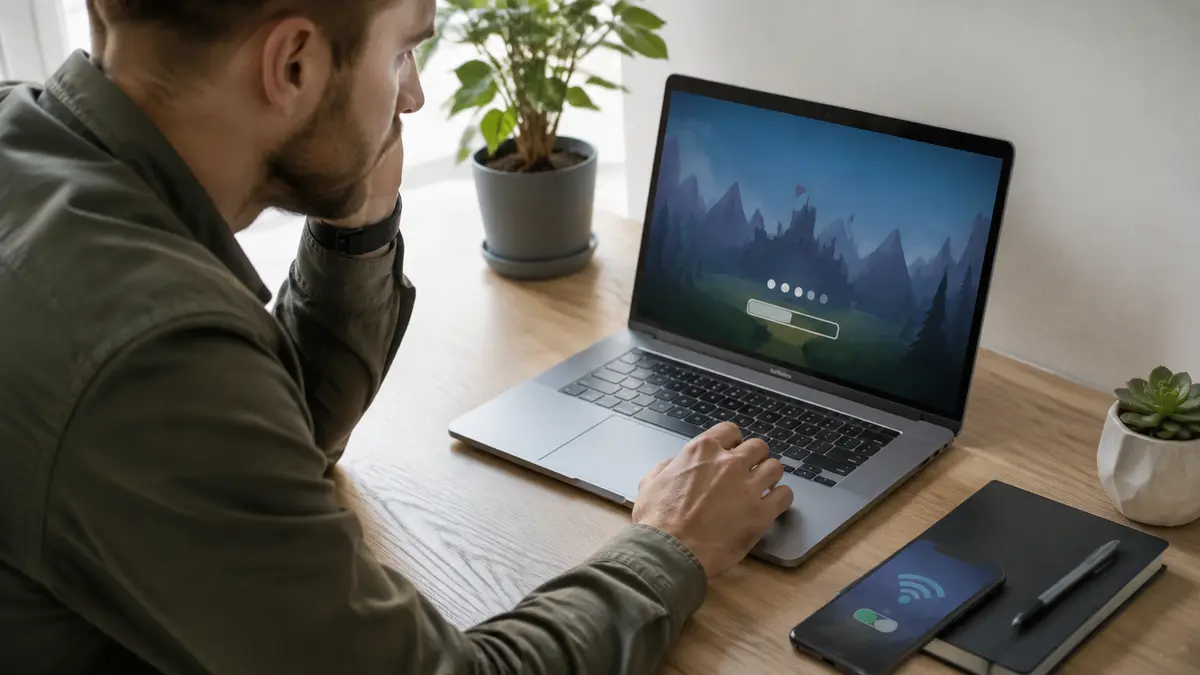
When a browser game shows a blank screen, stops on a loading bar or responds several seconds late, changing random settings can make the problem harder to identify. A better approach is to test one possible cause at a time, beginning with reversible steps that do not affect passwords, files or security.
This guide explains a safe troubleshooting order. After the game works again, you can use the live picks below to check whether performance is normal across more than one title.







1. Check whether the problem affects one game
Open another game from the same website. If the second game works, the original title may be temporarily unavailable or incompatible with the device. Report its name and choose another game rather than repeatedly changing the browser.
If every game fails, open one ordinary website in a new tab. When other pages are also slow, reconnect to Wi-Fi or restart the router if you are authorised to do so. On mobile data, check that the signal is stable and that a data limit has not paused large downloads.
2. Reload once and wait for the page
Refresh the game page once, then allow the loading process to finish. Repeatedly refreshing can restart the same download and waste more time. Some embedded games load their player, advertisement and game files in separate stages.
If the page remains blank, note whether you see an error message, a blocked-content symbol or only an empty frame. That detail helps distinguish a network failure from a browser setting or a problem on the game provider’s server.
3. Close heavy tabs and applications
Video streams, large documents and many social-media tabs can use memory and processing power even when they are in the background. Save your work, close what you do not need and try the game again in one tab.
On an older computer, restarting the browser can release resources left by a long session. Restarting the whole device may also complete pending updates, but save open work first.
4. Update the browser safely
Use the browser’s own About or Help menu, or download an update from its official website. Do not trust an advertisement that says your browser is outdated. Updates can include compatibility and security fixes needed by modern web games.
After updating, restart the browser and test the same page. If an organisation manages the computer, updates or site access may be controlled by its administrator; do not bypass those restrictions.
5. Test extensions and privacy settings carefully
An ad blocker, script blocker or strict privacy extension can sometimes prevent an embedded player from loading. Use a private window as a temporary test if your browser allows it. If the game works there, review extensions one at a time instead of disabling security permanently.
Only allow cookies or site data for a game provider you trust. Never turn off antivirus protection, firewall rules or an administrator’s filtering to open a game. On a school or workplace device, use the site only when policy permits it.
6. Clear data for the affected site
Old cached files can conflict with a newer game version. Clear data for the affected website first rather than deleting your entire browsing history. Be aware that clearing cookies may sign you out or remove unsaved preferences.
After clearing the site data, reopen the page and wait for fresh files to download. If the game still fails, the cache was probably not the cause.
7. Check hardware acceleration only when needed
Browsers normally choose suitable performance defaults. Hardware acceleration uses the graphics processor for video, animation and games, but certain driver combinations can cause flickering or crashes. Firefox’s official performance settings guide recommends its automatic settings for most users and explains when a change may help.
If you test hardware acceleration, change only that setting, restart the browser and record the original value so you can restore it. Updating the graphics driver from the computer or graphics manufacturer is safer than installing a driver from an unknown download page.
8. Reduce the game’s workload
- Select low or medium graphics quality when available.
- Use a smaller game window instead of fullscreen.
- Turn off optional shadows or effects inside the game.
- Avoid running a video or screen recording in the background.
- Connect a laptop to power if battery-saving mode limits speed.
- Keep enough free storage for normal browser and system updates.
When the game is still broken
Write down the game title, page address, browser name, device type and exact error. Send that information through the site’s contact or report option without including passwords, private account data or unnecessary personal information.
You can keep playing a lighter title from our arcade games or puzzle games collections. One broken embedded game does not mean the complete website or device is damaged.
The safest troubleshooting process is gradual: test another game, check the connection, close heavy tabs, update through official channels and change one reversible setting at a time. Avoid unknown boosters, extensions and downloads. They are more likely to create a second problem than to solve the first one.
 NewPlay
 NewPlay
 NewPlay